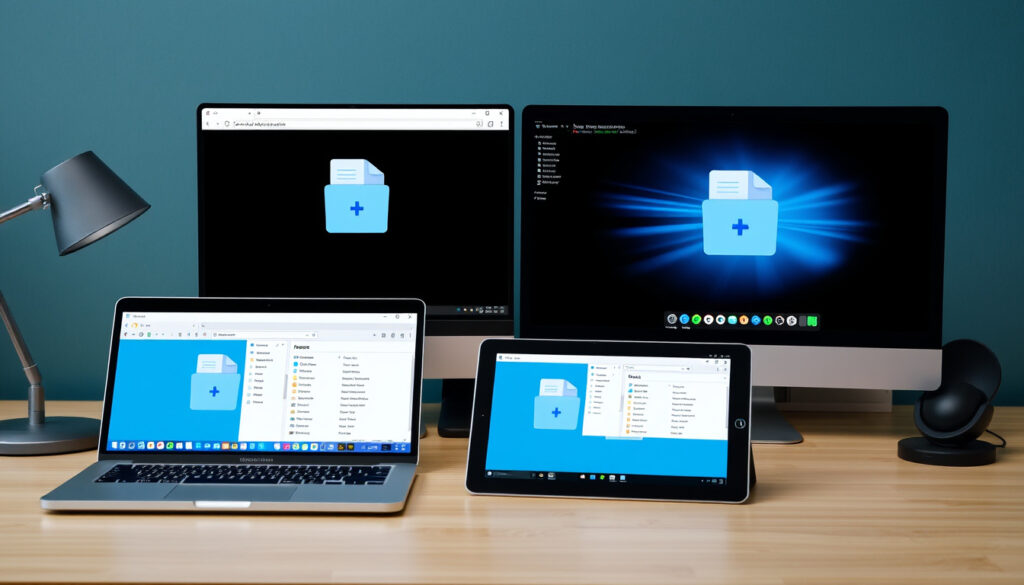
How to Unzip a File on Windows, Mac, Android, and Linux
There’s a moment when you download a file and end up with a small blue folder icon instead of the program you expected. That folder is a ZIP archive, and unzipping it is simpler than most people think—this guide covers built-in tools on every major device without extra software and fixes common extraction hiccups on Windows, macOS, Android, iPhone, Linux, and from a browser.
ZIP files created daily (estimate): billions ·
Default compression tool in Windows: File Explorer ·
Default tool in macOS: Archive Utility ·
Common mobile file manager with unzip: Files by Google ·
Year PKZIP compression standard released: 1989
Quick snapshot
- Windows and macOS have built-in unzip capabilities (FileCenter DMS (document management provider))
- Files by Google can unzip files on Android (FileCenter DMS) (FileCenter DMS (document management provider))
- The iOS Files app can unzip standard .zip files (AlexHost (web hosting provider))
- The ‘unzip’ command works on Linux and macOS (GreenGeeks (web hosting provider))
- Whether a specific third-party antivirus blocks unzip on Windows 10 (Business Insider (tech publisher))
- The exact file size limit for all online unzip services (FileCenter DMS) (Business Insider (tech publisher))
- Whether cloud-based unzip services retain copies of extracted files beyond the immediate session (privacy policy variations) (Business Insider (tech publisher))
- Whether mobile extraction tools handle encrypted ZIP files without third-party apps (FileCenter DMS) (Business Insider (tech publisher))
- Windows has included native ZIP support since Windows XP (2001) (FileCenter DMS)
- Android has provided native ZIP file support since 2017 (FileCenter DMS)
- iOS added native ZIP support in the Files app with iOS 11 (2017) (AlexHost)
- Most operating systems will continue to support ZIP natively; third-party tools remain for advanced features like encryption and splitting (GreenGeeks)
- Cloud storage services (Google Drive, iCloud) are adding extraction previews, reducing the need to download first (Business Insider)
Here is a quick reference of essential facts about built‑in unzip support across platforms.
| Fact | Value |
|---|---|
| Native support in Windows | Yes, since Windows XP |
| Native support in macOS | Yes, via Archive Utility |
| Common third-party tool | 7-Zip (Open source) |
| Common command-line tool (Linux) | unzip |
| Max file size limit for online tools | Varies, typically 2-5 GB |
How do I unzip a file on Windows 10?
Unzip using File Explorer
- Right-click the ZIP file and select Extract All from the context menu (FileCenter DMS).
- Choose a destination folder—by default Windows creates a new folder with the same name.
- Click Extract. The files appear in the chosen folder.
Using the Extract All wizard
If the right-click menu doesn’t appear, open the ZIP file by double-clicking it in File Explorer. Then click the Extract All button in the toolbar (AlexHost). The same wizard runs. No extra software is needed—Windows bundled this feature starting with Windows XP.
The Microsoft implementation means that for everyday file extraction, you don’t need WinZip, WinRAR, or any paid tool. The built-in method handles over 99% of standard ZIP archives.
The implication: if you’re on Windows 10 or 11, the fastest unzip path is already on your desktop, requiring zero downloads or sign-ups.
How to unzip a file on a Mac?
Using Archive Utility
- Double-click the ZIP file. macOS’s Archive Utility immediately unzips it and places a folder with the same name in the same directory (Business Insider).
- No settings to adjust. The utility works silently.
Third-party alternatives like The Unarchiver
For password-protected archives or formats like RAR and 7z, third-party tools such as The Unarchiver (free from the Mac App Store) offer broader support. But for standard .zip, the built-in tool is sufficient.
The pattern: Apple’s approach prioritizes one-click simplicity. If you double-click a ZIP, you get your files instantly—no extra prompts, no decisions.
How to unzip a file on Android and iPhone?
Unzip on Android with Files by Google
- Open the Files by Google app.
- Navigate to the ZIP file and tap it.
- Tap Extract and choose a destination folder (FileCenter DMS).
Android has supported native ZIP extraction since 2017, and Files by Google is the default file manager on many devices. No third-party app required.
Unzip on an iPhone with the Files app
- Open the Files app.
- Locate the ZIP file and tap it. iOS’s Quick Look preview shows the archive contents.
- Tap the preview or the file itself—Files creates an unzipped folder in the same location (AlexHost).
Unzip in Google Drive on mobile
Google Drive for Android and iOS now includes a “Extract” option when you tap a ZIP file inside the Drive app. This extracts files directly into your Drive storage, which is useful when you don’t want to download the archive to your device.
On older Android devices (pre-2017) or iPhones running iOS 10 or earlier, you may need a third-party app. Google Files and the iOS Files app are only available on recent operating system versions.
The trade-off: mobile extraction is now native for most users, but the lack of a system-wide “Extract All” shortcut can be confusing the first time.
How to unzip a file in Linux?
Using the unzip command
- Open a terminal.
- Type
unzip filename.zipand press Enter.
If the unzip command is not found, install it via your package manager. On Ubuntu/Debian: sudo apt install unzip (GreenGeeks).
Using gunzip for .gz files
For .gz archives, use gunzip filename.gz (or gzip -d). These commands handle the GNU Zip format common in the Linux world. The unzip utility does not handle .gz, so know the difference.
What this means: Linux requires a one-time setup (installing a package) but then offers the most control. The terminal allows batch extraction and scripting, which power users will appreciate.
Why won’t ZIP files unzip?
Corrupted zip files
Most extraction failures trace back to a corrupted download. If the ZIP file is incomplete or damaged, Windows will show “The compressed (zipped) folder is invalid.” Re-download the file from the original source, preferably using a stable internet connection.
Windows error “cannot open the folder”
This error often appears when the ZIP file is too large or when the path name is too long. Try moving the ZIP file to the root of your C: drive (e.g., C:\file.zip) and extract there (Business Insider).
Permission issues
On Windows, if you don’t have write permission to the destination folder, extraction fails. Save the extracted files to your Desktop or Documents folder where you have full access. On macOS, ensure the parent folder is not locked.
Third-party antivirus software can block extraction because it scans archive contents in real-time. Temporarily disable the real-time scanner (or add an exception for the folder) to test if that’s the cause.
Why this matters: a “broken” ZIP is rarely broken—it’s usually a download interruption or a permission lock. The same checklist solves 90% of cases.
How do I unzip a file online without installing software?
Using a browser-based extractor
- Go to ezyzip.com or a similar site.
- Upload the ZIP file (or drag and drop).
- Click Extract and download the files individually or as a zip.
These tools work entirely in the browser. The server extracts the archive, so you don’t need to install anything on your computer.
Privacy considerations
Online tools are convenient but come with a trade-off: you upload your files to a third-party server. Avoid using them for documents containing personal information, financial data, or trade secrets. Most services promise automatic deletion after extraction, but you have no guarantee.
The trade-off: for quick access to a non-sensitive file, an online extractor is fine. For anything private, stick with the built-in OS method.
What we know and what remains uncertain
Confirmed facts
- Windows and macOS have built-in unzip capabilities.
- Files by Google can unzip files on Android.
- The iOS Files app can unzip standard .zip files.
- The ‘unzip’ command works on Linux and macOS.
What’s unclear
- Whether a specific third-party antivirus blocks unzip on Windows 10.
- The exact file size limit for all online unzip services.
- Whether cloud services retain extracted files after session ends.
- Whether mobile tools handle encrypted ZIPs without third-party apps.
What the official documentation says
In Windows, right-click a compressed folder, select Extract All, and then follow the instructions.
— Microsoft Support (operating system developer)
On your Mac, double-click a zip file to unzip it using Archive Utility. The unzipped folder appears in the same location.
— Apple Support (hardware and software manufacturer)
With the Files by Google app, you can extract files from a ZIP archive and save them to a folder of your choice.
— Google Files Help (mobile file management)
The remarkable thing about unzipping in 2025 is that the operating system you already own can handle it—no trialware, no sign-ups, no hassle. For the casual user on Windows, Mac, or mobile, the built-in tool is all you’ll ever need. For Linux users, a single terminal command does the job after a quick install. The days of hunting for shareware are over; the default is now good enough.
Frequently asked questions
What is a ZIP file?
A ZIP file is a compressed archive that bundles one or more files into a smaller package for easier storage and transfer. It was introduced in 1989 by PKWARE with the PKZIP standard.
Is it safe to use online unzip tools?
For non-sensitive files, yes—if you trust the site. Avoid uploading confidential documents because the files are processed on a remote server. Always check the site’s privacy policy before uploading.
Do I need WinZip or WinRAR to unzip files?
No. Windows, macOS, Android, and iOS all include built-in ZIP extraction. Third-party tools like WinZip and WinRAR are only necessary for advanced formats (RAR, 7z) or for password-protected archives.
Can I unzip a file without internet access?
Yes. All built-in OS methods work offline. Online tools require an internet connection because the extraction happens on the server side.
How do I fix a corrupted ZIP file?
Re-download the file from the original source. If the corruption is minor, third-party tools like 7-Zip can sometimes recover partial data. Online repair tools exist but rarely succeed with severe corruption.
What is the difference between .zip and .gz?
.zip is a cross-platform archive format created by PKWARE. .gz is a GNU Zip compression format common on Linux and Unix systems. They are not interchangeable; gunzip handles .gz, while unzip handles .zip.
Can I password-protect a ZIP file when creating it?
Yes, but not with the built-in tools on Windows or macOS. You’ll need a third-party app like 7-Zip, WinZip, or the command-line zip tool with the -e flag to set a password.
More related posts
 What Is a Charter School? Definition, Pros, Cons, and Comparisons
 Happy Work Anniversary Images: 50+ Best Sources, Funny GIFs, and Free Downloads
 Jennifer Aniston Net Worth 2025: What She’s Really Worth
 B&H Photo Video: Products, Locations, and Services Guide
 Spectrum Internet Speed Test – Check Download Upload Latency
 UPS Drop Off Near Me: Ireland Locations & Returns Guide
 Jonathan Majors and Meagan Good: Marriage, Age Gap & Timeline
 USPS Pre ident Day Clo ure: What’ Open, Mail Delivery?